> ## Documentation Index
> Fetch the complete documentation index at: https://pylon-docs-training-data-api-section.mintlify.site/llms.txt
> Use this file to discover all available pages before exploring further.
> How the portal experience works for your customers
# Portal Experience
## Login
Users will login to the portal by visiting the domain listed at the top of the portal settings page. By default, login is via. a one-time code sent to their email. This allows users to not have to create an account with Pylon to have access to your portal and validates they have access to their email when attempting to login.
Using [Custom Authentication](/pylon-docs/customer-portal/custom-authentication), you can create a unified login between your dashboard and the customer portal.
## View Tickets
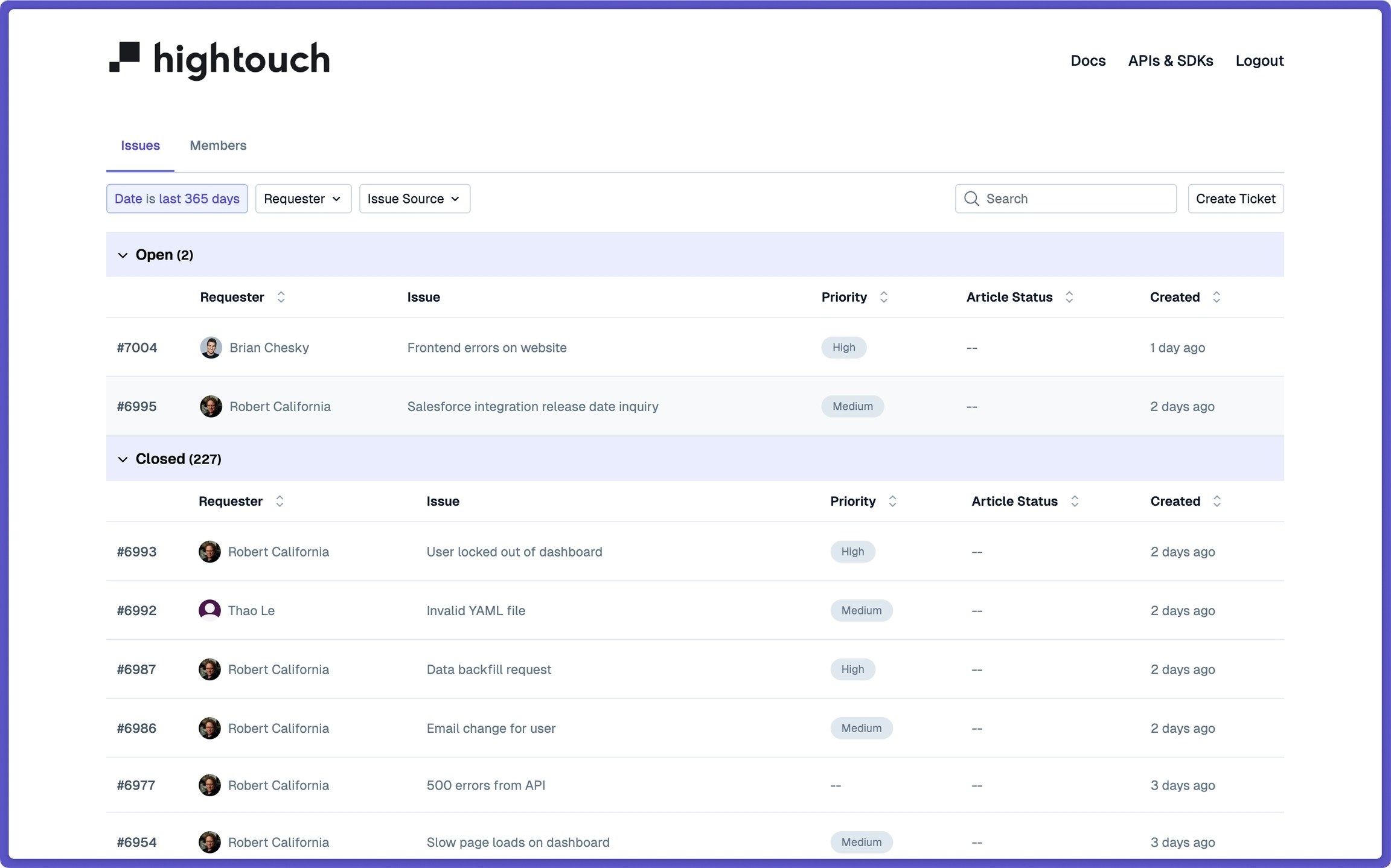
Customers can view and search for tickets from the main page of the portal. By default, they will see the last 1 years worth of tickets. Any fields on the ticket you designated in the portal settings page will be visible as well
 ## Create Tickets
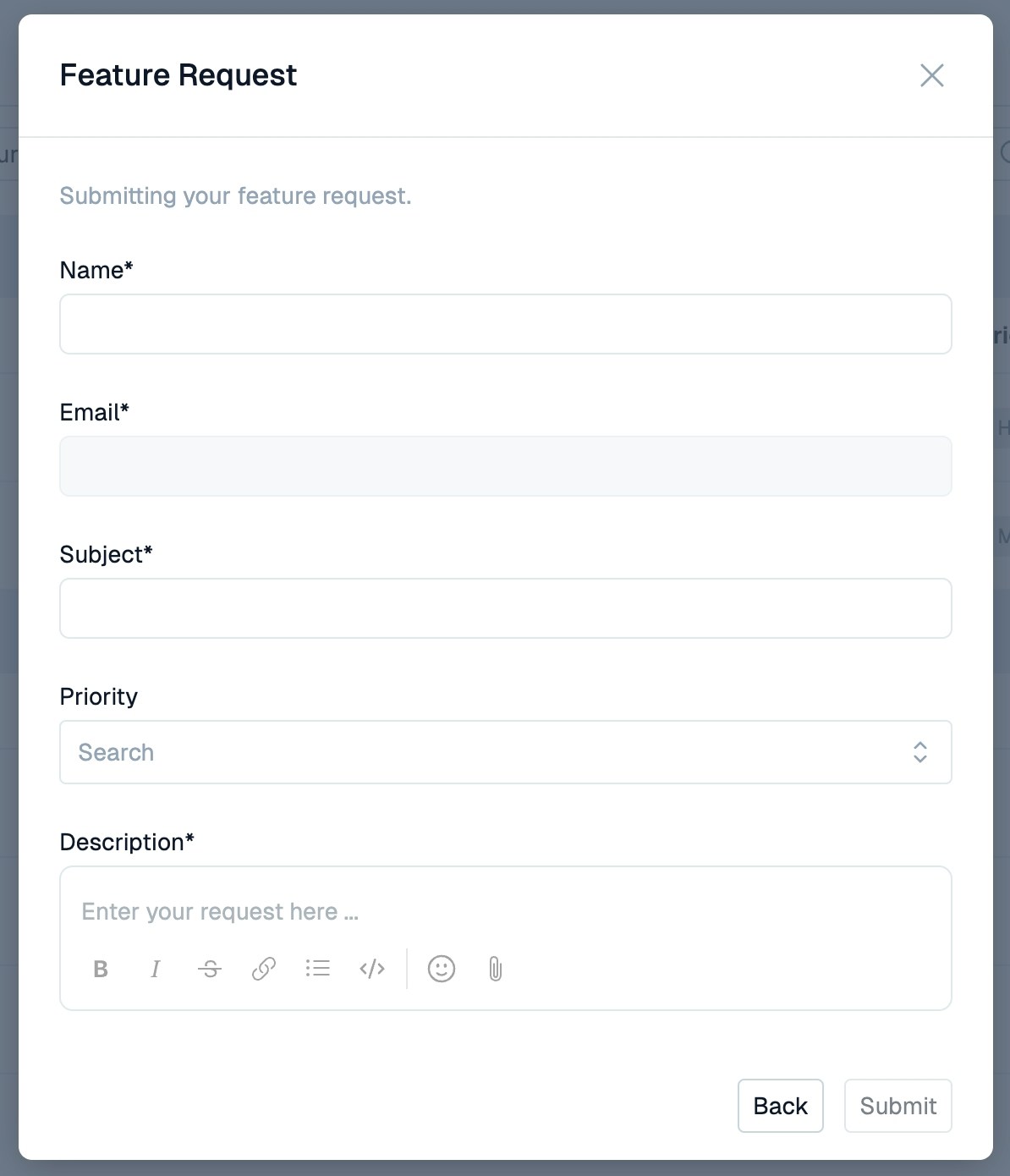
You can create [Ticket Forms](/pylon-docs/support-workflows/ticket-forms) that users can submit from directly within the portal. These form submissions open new tickets and are immediately visible in the portal, along with the customers' remaining tickets.
## Create Tickets
You can create [Ticket Forms](/pylon-docs/support-workflows/ticket-forms) that users can submit from directly within the portal. These form submissions open new tickets and are immediately visible in the portal, along with the customers' remaining tickets.
 Users can then click into tickets to respond to them directly, see latest updates from their other teammates or your team, and modify designated fields.
## Manage Members
[Admins](/pylon-docs/customer-portal/access-control#admin) are also able to use the members tab in the portal to view who on their team has access to the portal, change permissions, and invite additional stakeholders into the portal.
Users can then click into tickets to respond to them directly, see latest updates from their other teammates or your team, and modify designated fields.
## Manage Members
[Admins](/pylon-docs/customer-portal/access-control#admin) are also able to use the members tab in the portal to view who on their team has access to the portal, change permissions, and invite additional stakeholders into the portal.