
Step 1: Setting up Internal Threads
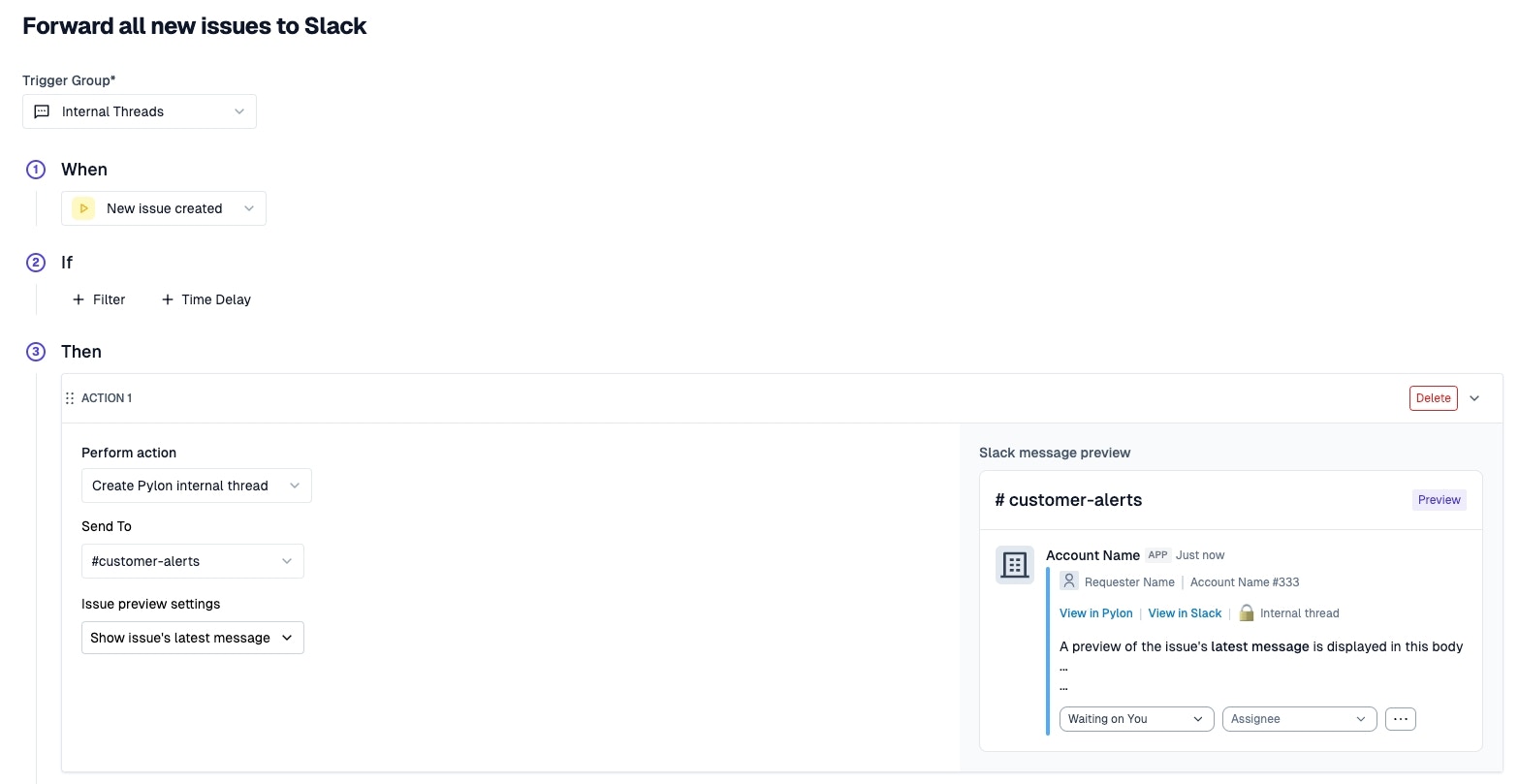
Internal threads are a dedicated threads in Slack to discuss and collaborate on new customer issues internally. All discussion in these threads will be synced back to Pylon! We recommend setting this up prior to connecting any other channels so they’ll be ready to sync as soon as you pull data into Pylon.For Small Teams
Make one public channel called #customer-alerts.For Larger Teams
If you have multiple team members handling accounts, we recommend opening up one channel per person on your team that’s responsible for handling account messages. For example, if you have three CSMs Alex, Sabrina, and John:- #alex-customers
- #sabrina-customers
- #john-customers
If you’re in a public workspace, or just want to make your internal threads in a private channel, add Pylon to the channel following the below instructions, but choose
Triage Channel.
Step 2: Enabling Channels
Channels in Pylon are bucketed into three categories:- Customer Channels, where you’re talking directly with your customers
- Community Channels, which typically contain users from many different companies
- Internal Channels, where users within your company are asking questions to other team members
Enable a Customer Channel
Pylon can be enabled in customer channels by one of 3 methods:- Bulk updating via the Accounts dashboard in Pylon
- Manual enablement directly from a Slack channel
- Autolinking via standard naming conventions
Private customer channels must be enabled directly in Slack.
Accounts Dashboard
Select “Accounts” in the sidebar, and then click the purple “Add Account” button in the top right of the screen (which should bring you to the menu below). Pick “Slack” to bulk enable Pylon in relevant customer channels.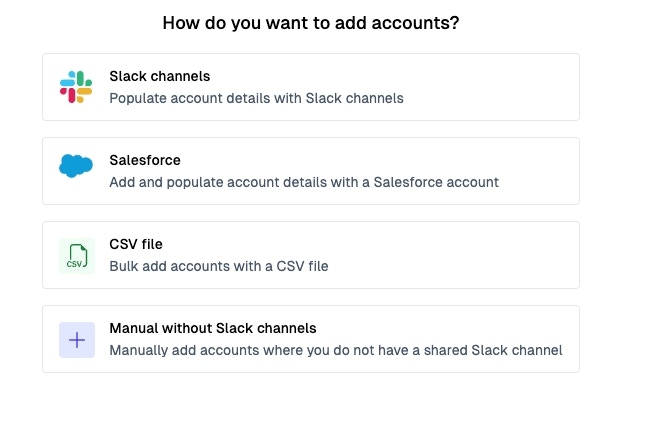
Slack
Pylon will have function in customer channels that you explicitly enable it in. If you want it to be enabled in channels automatically, you can use our CRM widget to create and setup channels automatically.- Go to your customer channel
-
Type
/invite @Pylon(or whatever you named the Pylon bot in Set Bot Name) and press enter.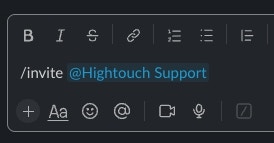
-
You’ll get a prompt to enable Pylon in the channel. Select
Customer Channel.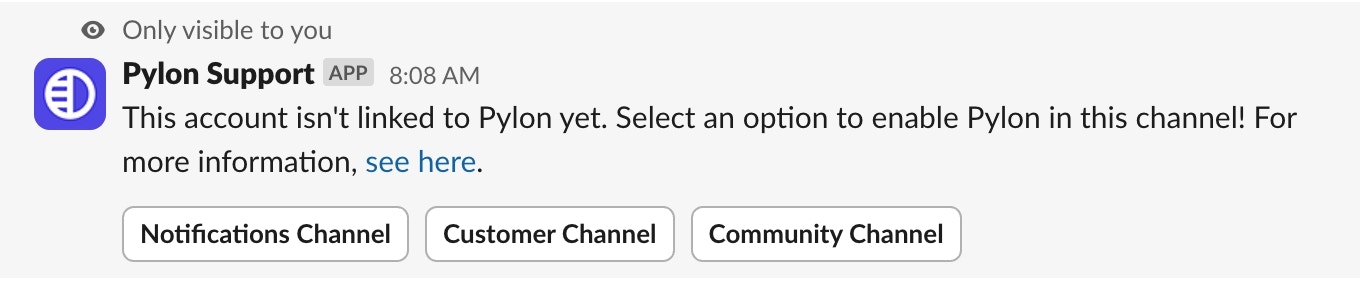
-
Fill out the modal with your preferences, including selecting the desired triage channel (these will be saved for the next time)
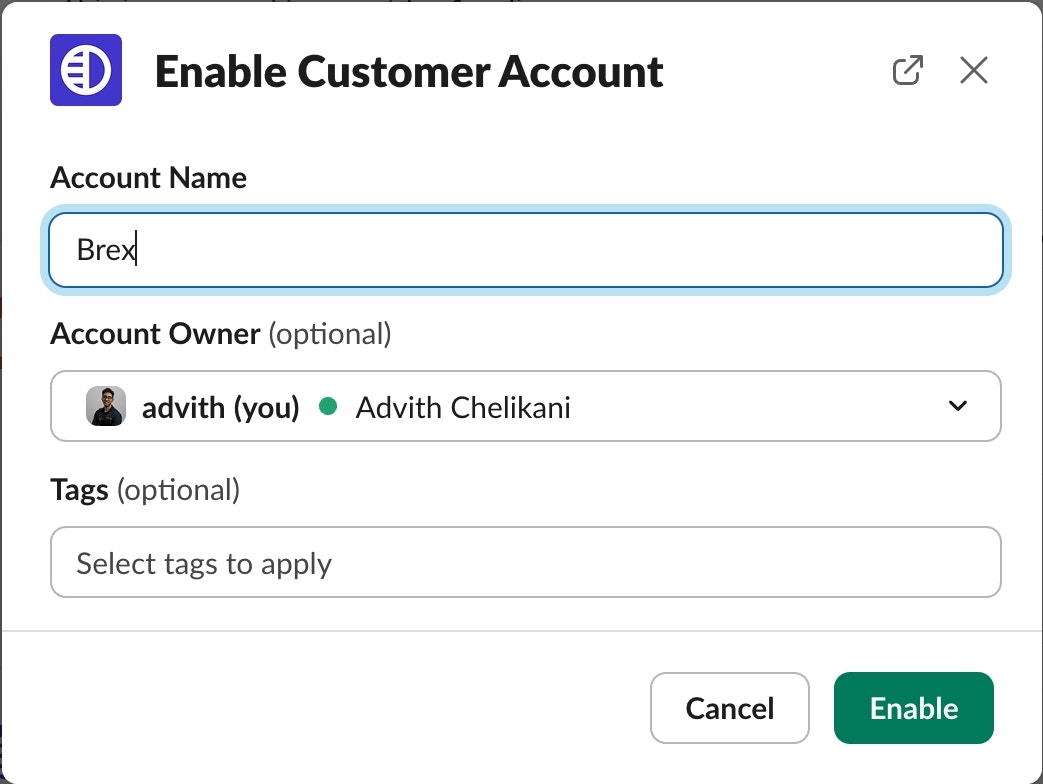
Autolink Channels
If you have a common pattern to your slack channels (i.e. puttingext- at the beginning of all external channels), you can autolink them with Pylon. Head over to the Accounts page and click on the gear icon in the Add Account button. You’ll be able to configure the pattern of your Slack channels there so they will sync automatically moving forward.

Enable a Community Channel
A community channel is a channel with users from many different companies, typically in a community workspace. Link this channel the same way you would a customer channel, but chooseCommunity Channel once inviting Pylon to the channel.