
Creating Roles
Role-based access control can only be configured by Admins.
-
Create a new role and select the permissions you wish to grant to that role.
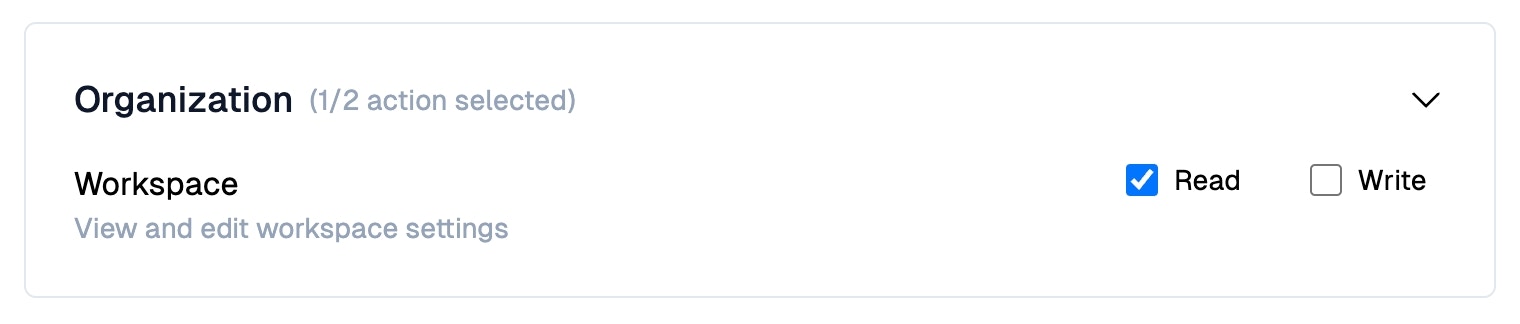
-
For data like Issues, you can create roles that have access to a subset of this data.
Use the filters under Issues to designate which set of Issues that role will have permissions to view. For example, create a
Securityrole that is only able to view email issues to your security email. - Save the role.
Default Roles
Member Role
Members have access to most features of the platform. Typically anyone that needs edit access within Pylon should be granted the Member role.Admin Role
Admins have additional capabilities beyond those of regular members. These include:- Access to workspace-level settings
- Access to security settings
- Access to billing settings
- Ability to install and uninstall apps
- Ability to delete issues and accounts
- Access to powerful developer features like creating API tokens
- Permission to invite other users as admins
User Management
On the Users page, apply roles to existing users or invite new users to Pylon with your new role. You can:- Select a role from the dropdown for an individual employee
- Bulk select invited users and change their role
- Hit “Invite User” to invite a new user to Pylon with a particular role