Sign in to Pylon
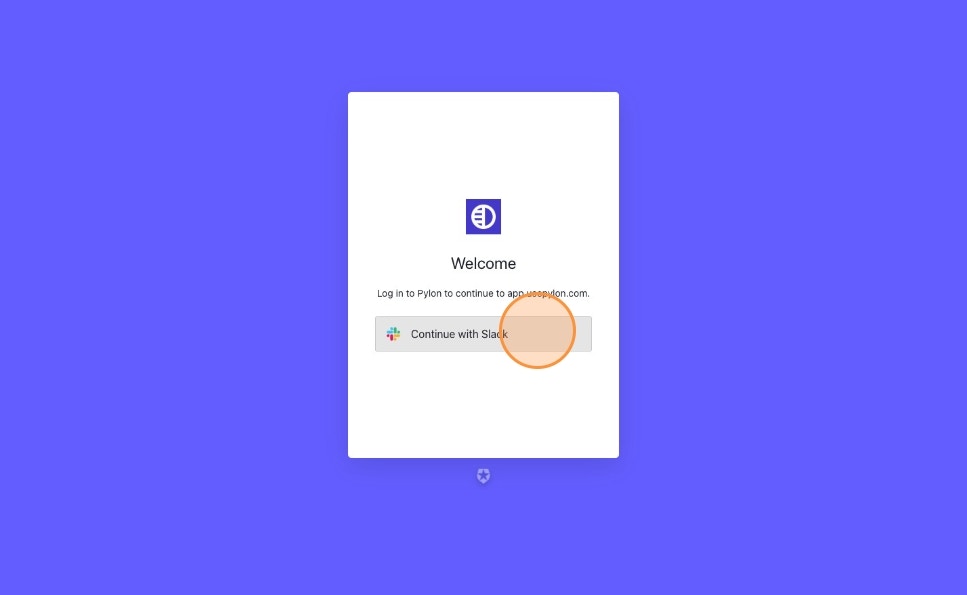
- Go to Pylon (https://app.usepylon.com) and click
Continue with Slack
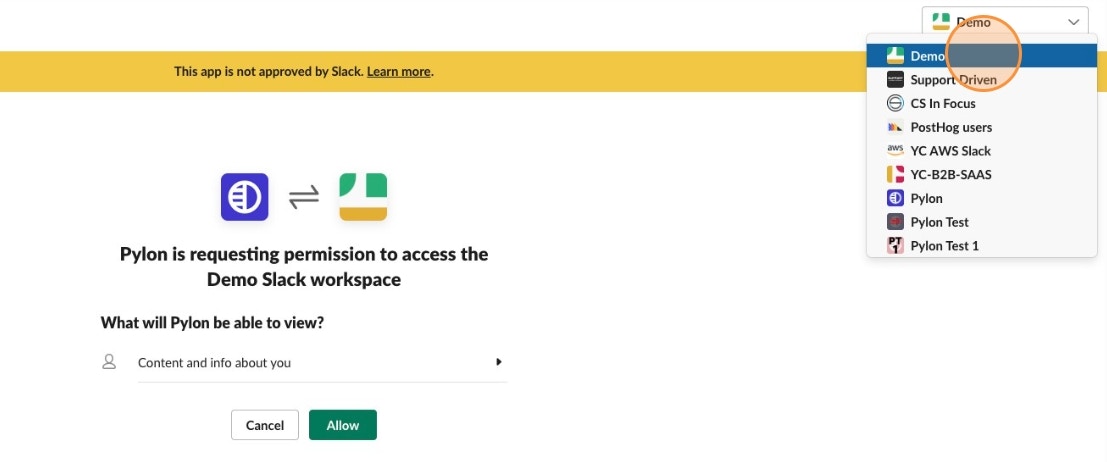
- Select the Slack Workspace that you want to add Pylon to
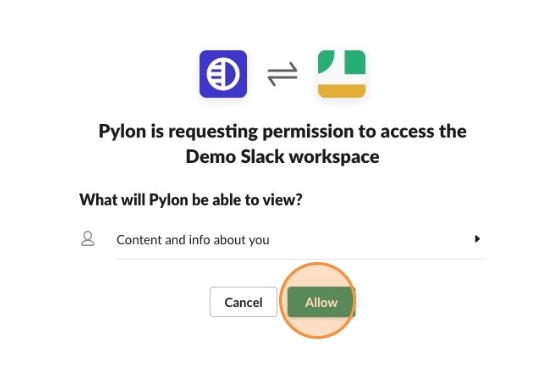
- Click
Allow
Add Pylon to your Slack Workspace
You’ll need a Slack Admin to install the Pylon app into your Slack Workspace.
- After signing in, click the
Connect to SlackButton
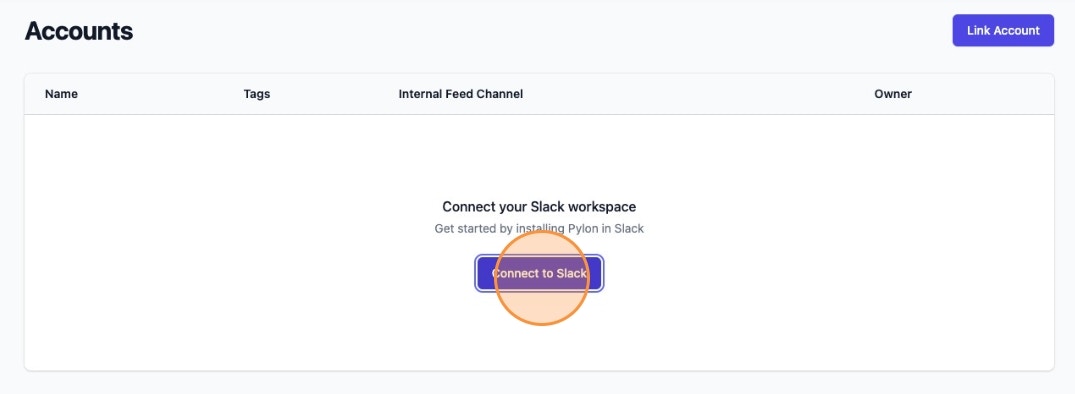
- Select the Slack Workspace that you want to add Pylon to
- Click
Allow
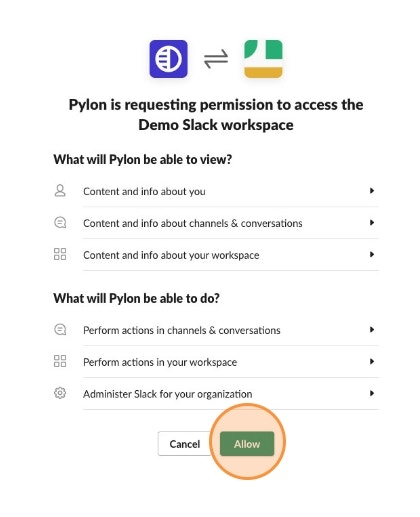
Additional Setup
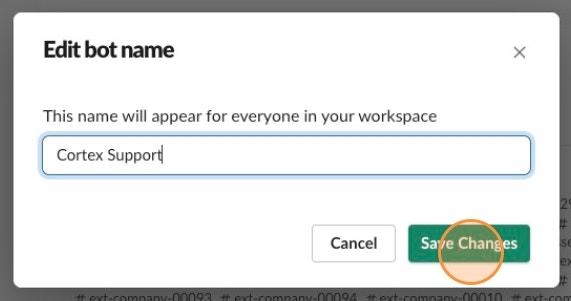
Set Bot Name
When Pylon is enabled in a customer channel, the customer will see that@Pylon was added to the channel. You can rename the bot so that instead it shows @[YourCompany Support] was added to the channel instead.
-
In Slack, click
Add Appsin the sidebar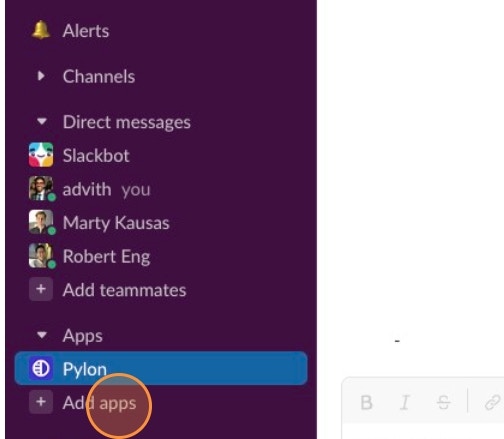
-
Find and click
Pylon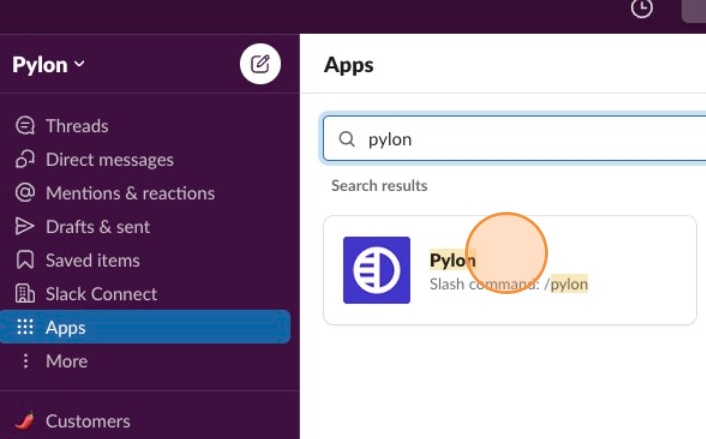
-
Click the
Abouttab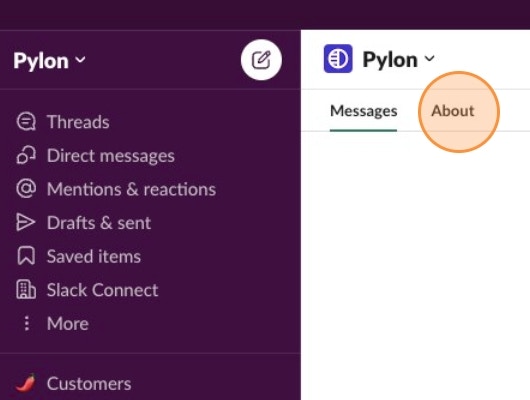
-
Click
Configuration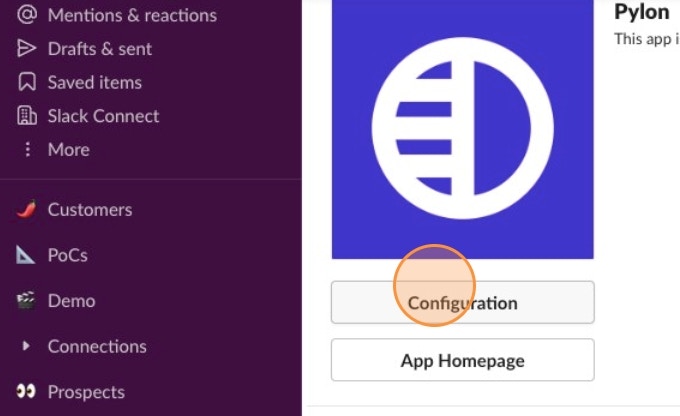
-
Scroll down to the section called
Bot Userand clickEdit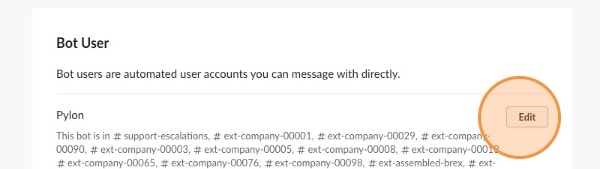
-
Enter the name of your company plus the work “Support” and hit
Save Changes