
Usage
Tabs on the top of the issue view show all conversations related to a given customer issue. The first tab contains the external conversation, overlayed with all internal conversations (distinguished visually by a yellow/orange background and a note on where it’s posted).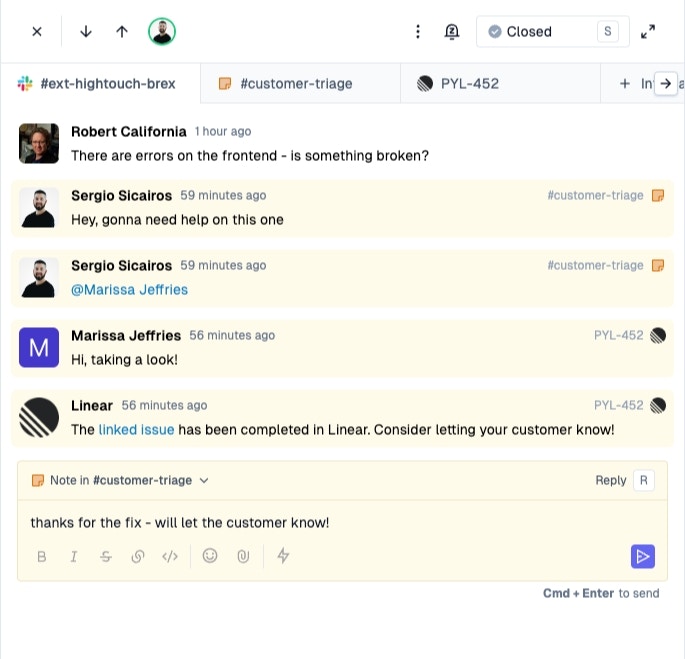
Creating an Internal Thread
An internal thread can be created from an issue by hitting the ”+ Internal Thread” tab along the top of the issue or from the “Reply” dropdown on the top right of the editor. Internal threads can be discussions in Pylon or Slack, and represent separate conversation related to customer issue. Each issue can have multiple internal threads related to it, but each internal thread can only be related to a single Pylon issue.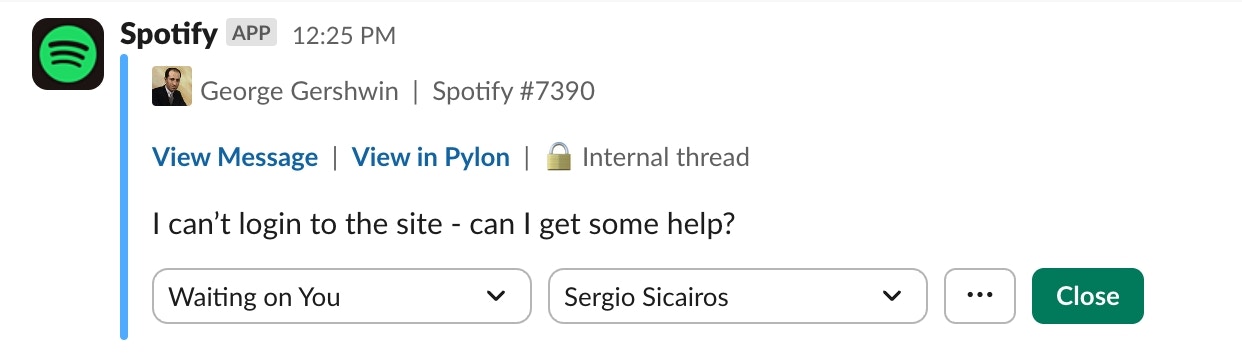
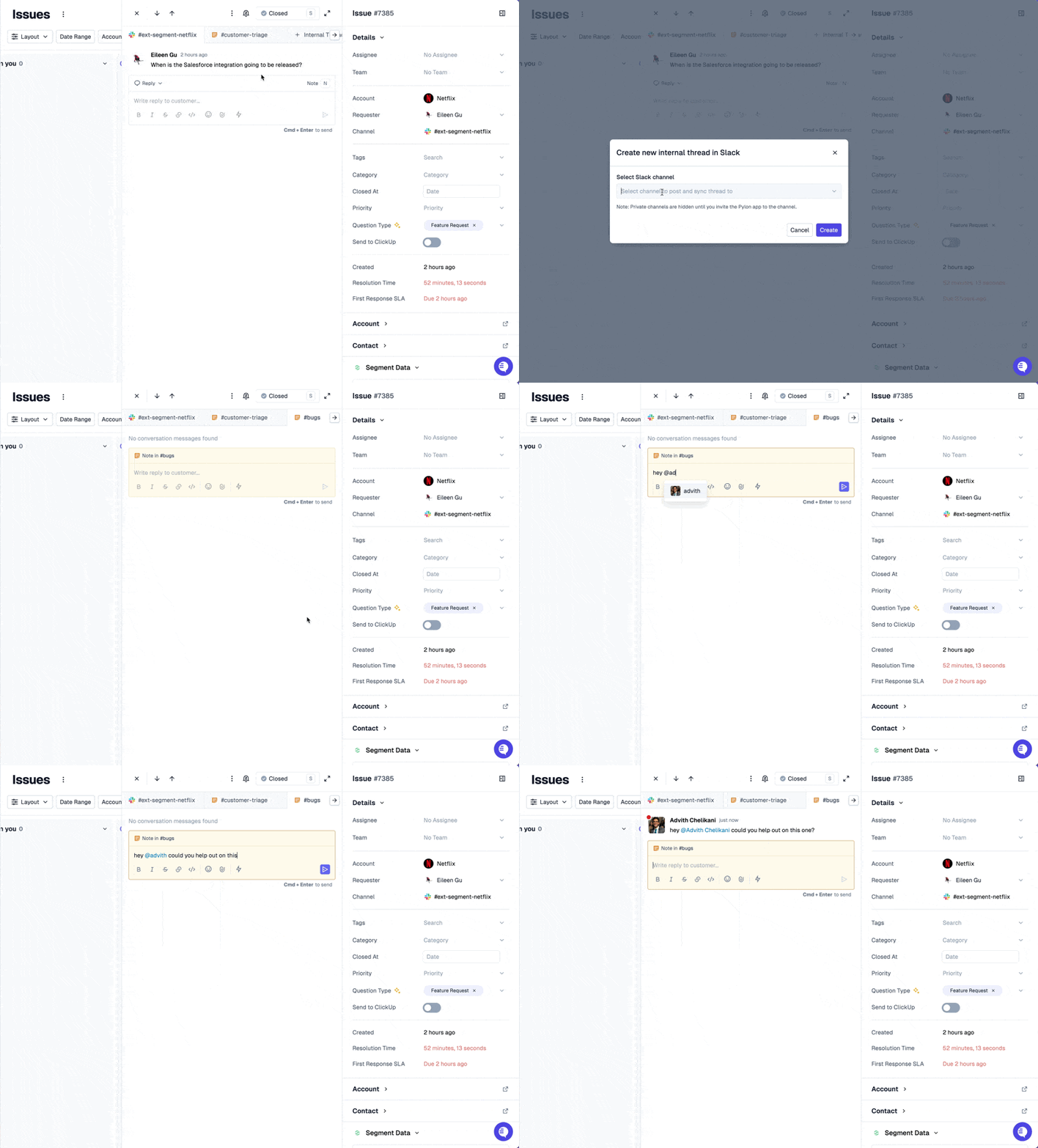
Internal threads are useful for looping in additional people and teams onto issues, while still tracking all the context in one place. Use it to:
- Loop in engineering in a #bugs channel
- Kickoff a feedback discussion about a feature request into a #project channel
- Have a quick internal pricing negotiation discussion
- Looping in a 3rd party vendor over email
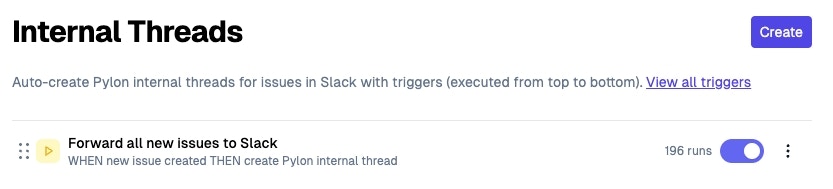
Syncing an existing Internal Thread
If you already have an ongoing thread in Slack and would like to sync it to an existing Pylon issue, you can use the “Sync internal thread” shortcut in Slack. To do this:- Hover over a message thread in Slack
- Click the 3 dots on the far right that say “More Actions”
- Select the “Sync internal thread” shortcut. If it’s not immediately visible in the menu, click on “More message shortcuts…” the first time you are using it!
