- Bolding, italics, strikethrough, and links
- Inline code and multiline code blocks
- Emojis
- Mentions of teammates or customers
- Attachments
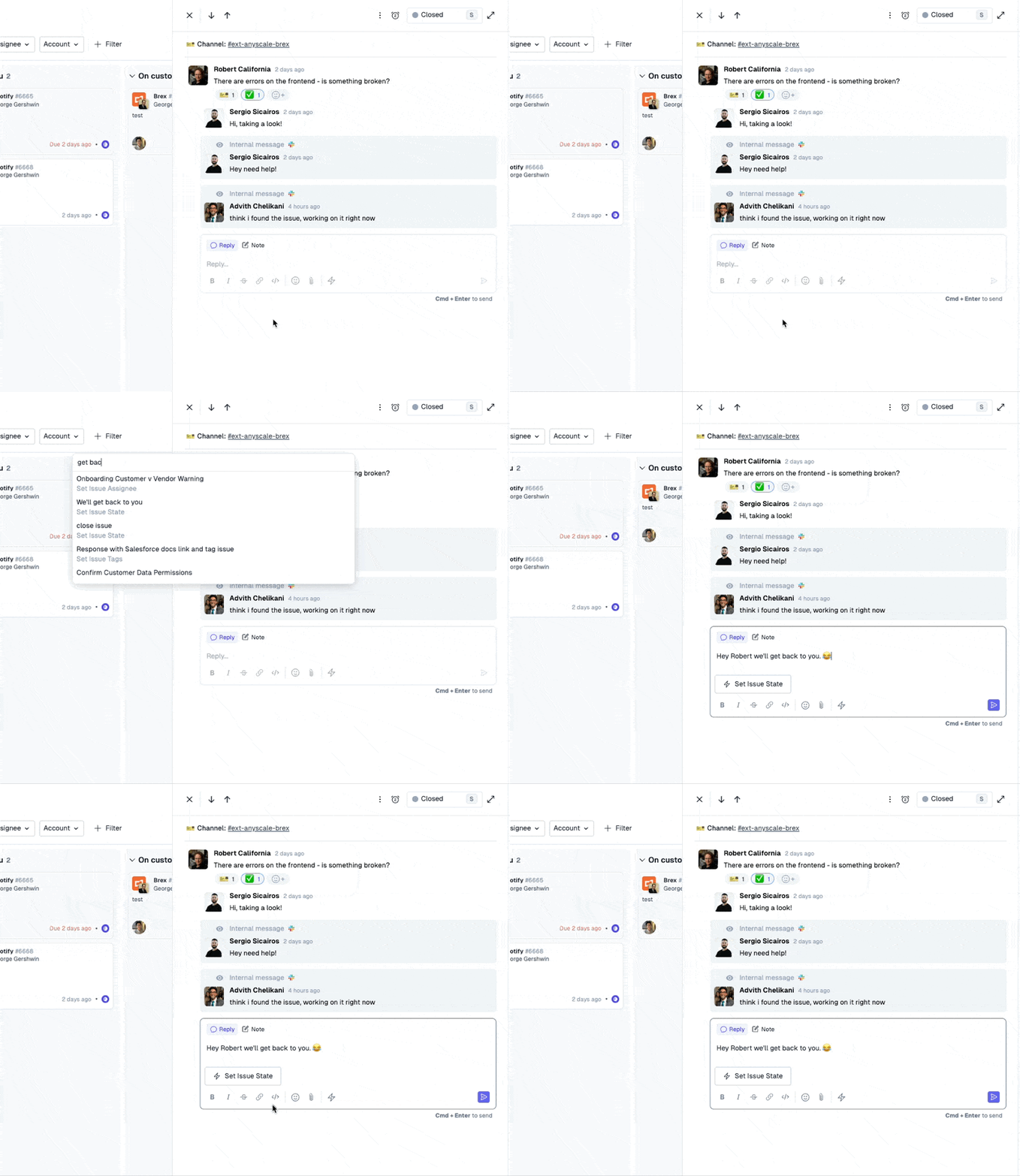
Macros
Through the editor, you can also run Macros by clicking the ⚡ icon in the text formatting toolbar or with them keyboard shortcut. A macro can add templated pre-filled texted into the editor and also queue up a series of actions to be executed.
Reply
SelectingReply indicates that the message will go directly to the customer wherever they originally reached out to you.
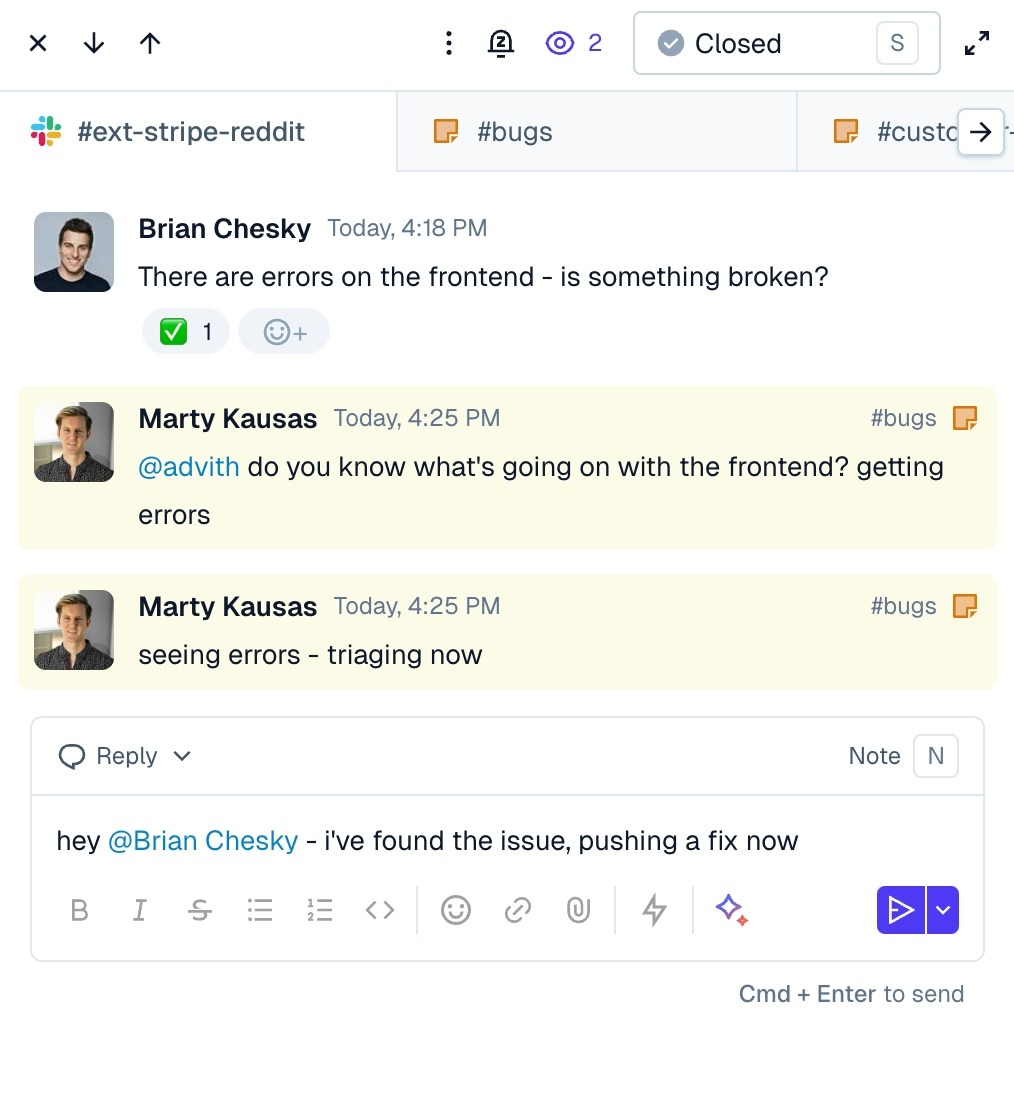
Internal Note
SelectingNote indicates that the message will not be visible to the customer. Depending on your configured settings and integrations, the message will either only be visible in Pylon, or be visible in Pylon and posted to the issue thread in your Internal Threads.
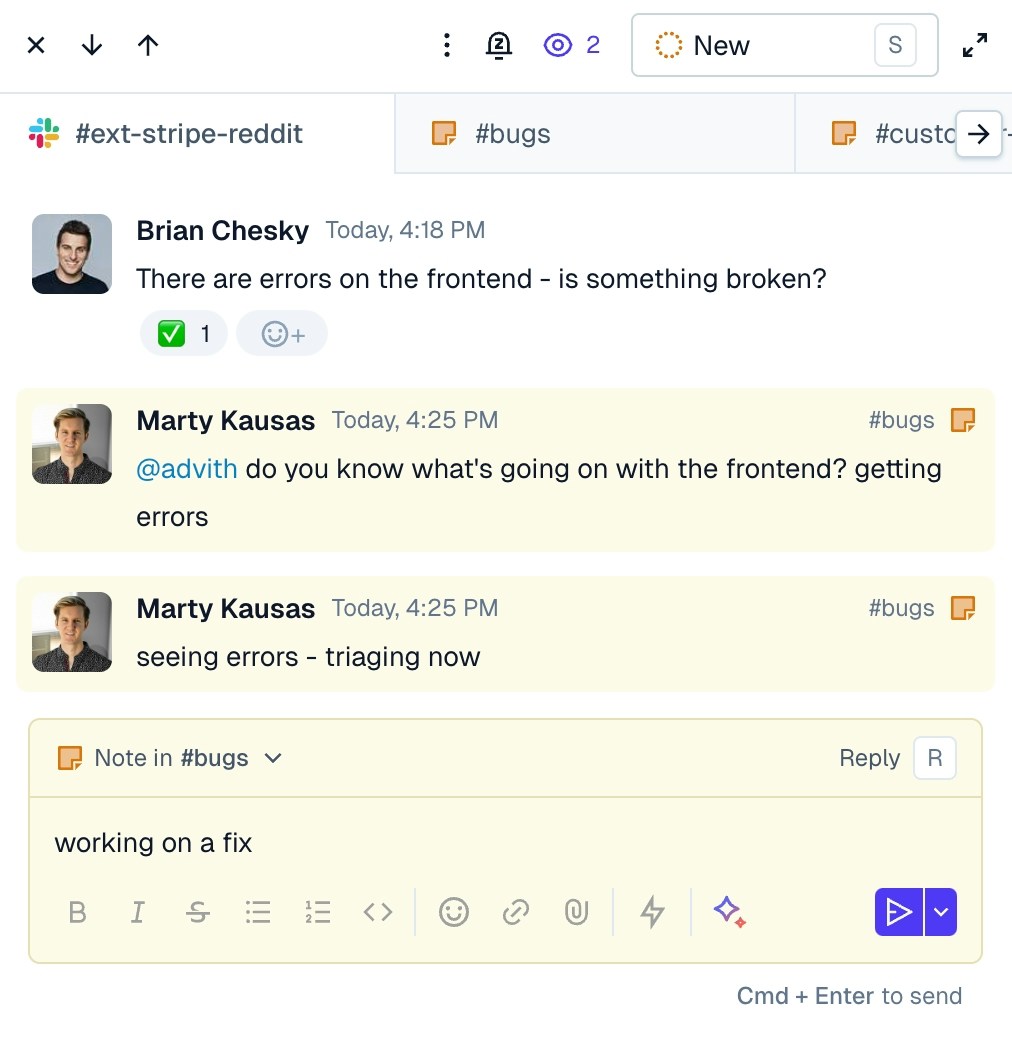
You’ll know you are leaving an internal note when the background changes color to yellow / orange.
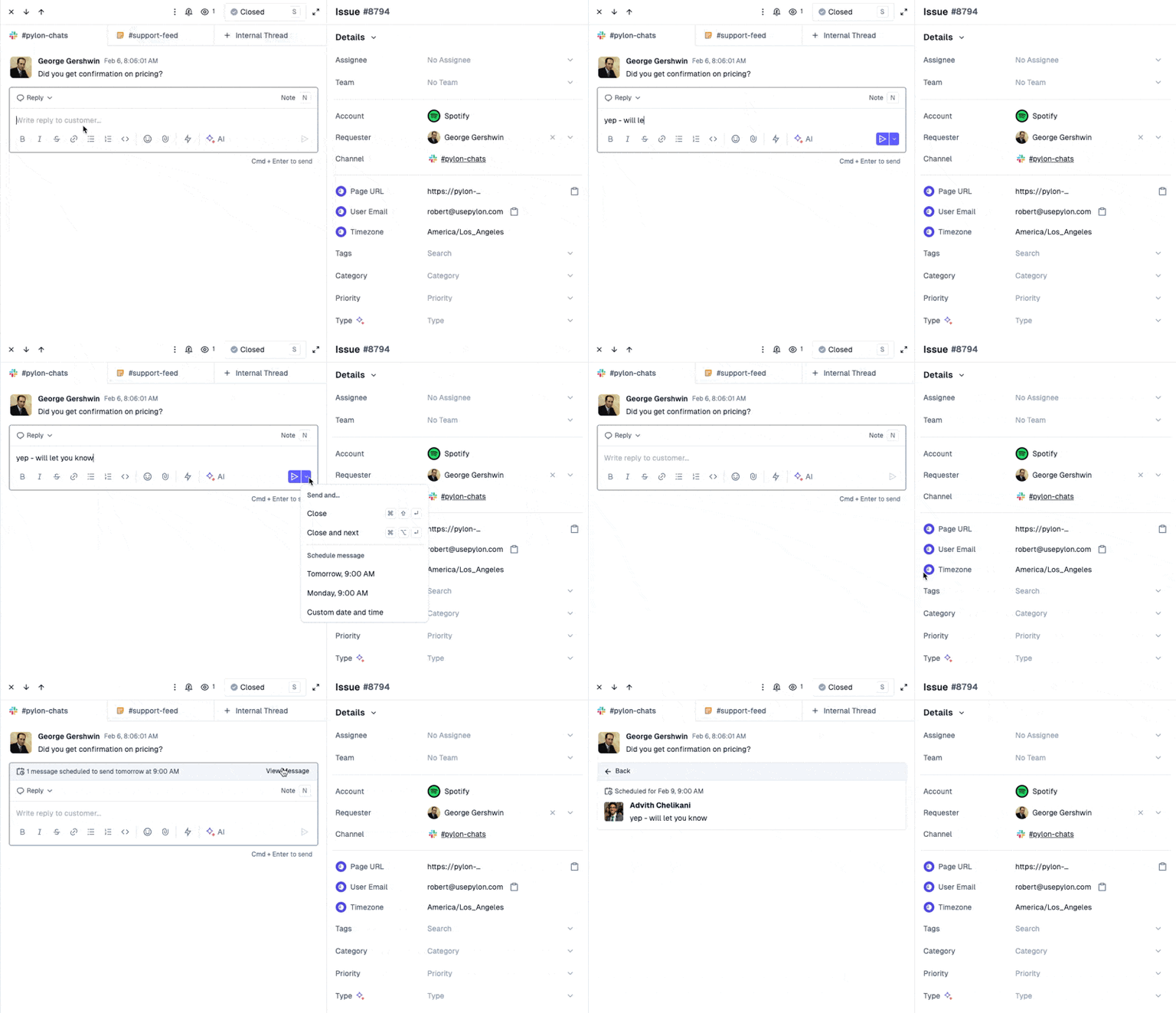
Scheduled Messages
Clicking the arrow next to the send button allows you to schedule replies and notes for the future. The time shown is in the time zone you have configured in your profile.